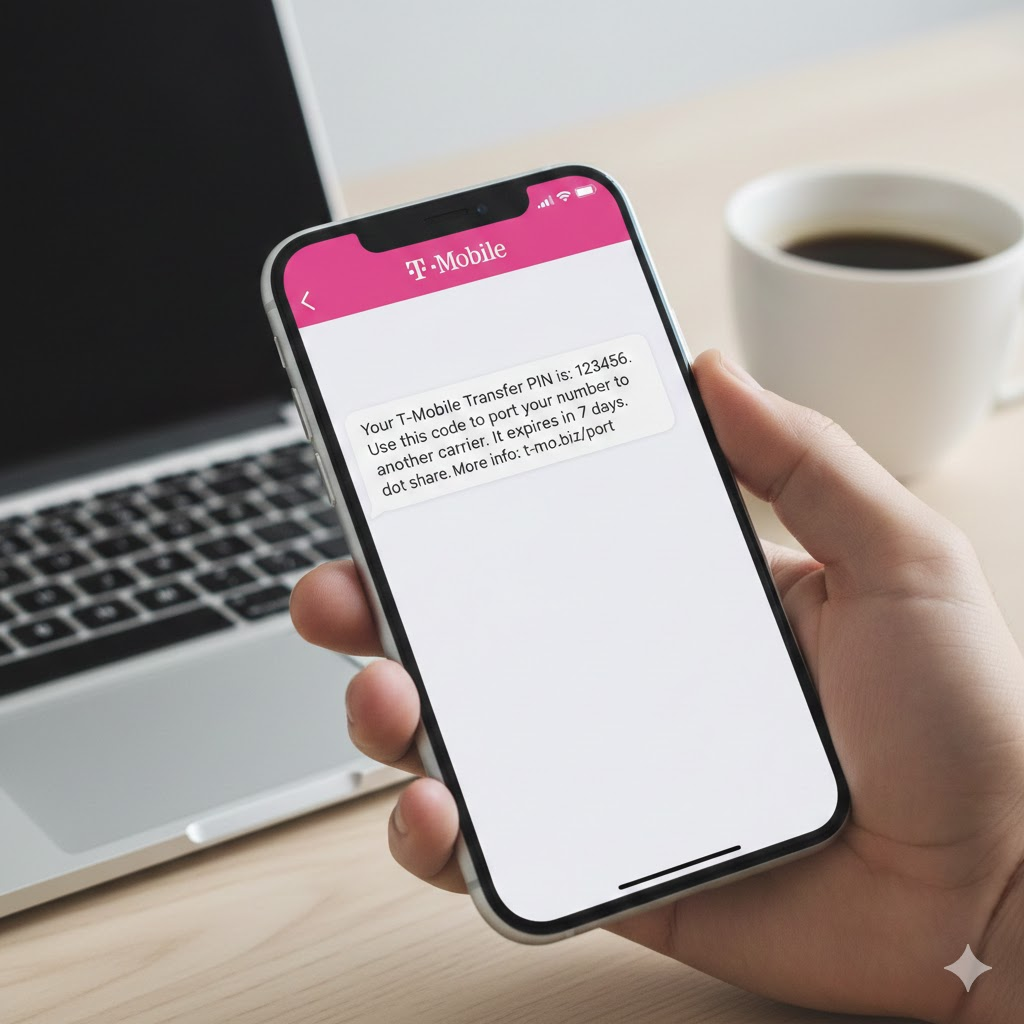
T-Mobile Transfer PIN
Introduction
If you’re planning to switch carriers but want to keep your existing phone number, you’ll need something essential from T-Mobile: your T-Mobile Transfer PIN. This unique security code is required before another carrier can port your number, ensuring your account stays protected from unauthorized transfers.
In this complete guide, you’ll learn what a T-Mobile Transfer PIN is, how to get it, where to find it, how long it lasts, and how to use it for mobile number portability (MNP). Whether you’re switching to AT&T, Verizon, Google Fi, or any other carrier, this article covers everything you need to make the transfer smooth and stress-free.
What Is a T-Mobile Transfer PIN?
A T-Mobile Transfer PIN is a special authentication code you use when switching carriers while keeping your phone number. It acts as an added layer of security to prevent SIM swapping or unauthorized port-outs.
Why T-Mobile Uses a Transfer PIN
- To protect your account from fraud
- To verify you are the rightful owner
- To authorize number port-out requests
- To ensure secure, smooth switching to another provider
When You Need It
You will need the transfer PIN when:
- Porting your number to another US carrier
- Moving your T-Mobile number to a prepaid plan
- Switching from T-Mobile to an MVNO (Boost, Metro, Mint Mobile, etc.)
How to Get Your T-Mobile Transfer PIN (Step-by-Step)
T-Mobile has made it simple to request your transfer PIN, and there are three official methods:
- Using the T-Mobile App
- Through Your Online Account
- By Dialing a Code
Let’s break each one down clearly.
1. Get Your T-Mobile Transfer PIN Using the App (Fastest Method)
This is the most popular and easy option.
Steps:
- Open the T-Mobile App on your phone
- Sign in with your T-Mobile ID
- Tap Account
- Select Profile Settings
- Scroll down to Line Settings
- Choose Request Transfer PIN
Once requested, T-Mobile will display your transfer PIN on screen. You may also receive a copy via text message.
2. Get Your T-Mobile Transfer PIN Through My T-Mobile Online
If you prefer a desktop or browser login, use this method.
Steps:
- Visit my.t-mobile.com
- Sign in to your account
- Navigate to Profile
- Select Line Settings
- Click Get Transfer PIN
Your temporary PIN will appear instantly.
3. Get T-Mobile Transfer PIN by Dialing a Code
If you don’t have app or internet access, you can dial from your T-Mobile phone:
Dial:
#PORT# (‣ #7678#)
This automatically sends your T-Mobile Transfer PIN by SMS within seconds.
How Long Does the T-Mobile Transfer PIN Last?
The T-Mobile Transfer PIN is valid for 7 days from the time you generate it.
After 7 days:
- It expires
- You must request a new code
Pro Tip:
Always request your transfer PIN right before starting the porting process to avoid delays.
Where to Find Your T-Mobile Account Number (Required for Porting)
Along with the transfer PIN, every carrier will ask for your T-Mobile account number.
Where to Locate It
- On your T-Mobile bill (top-right corner)
- Inside the T-Mobile app → Account Settings
- On my.t-mobile.com → Account Information
- By contacting T-Mobile customer support
Important Note:
Your phone number is not your account number.
Your transfer PIN is not your password.
You need both for successful number port-out.
Why Does T-Mobile Require a Transfer PIN? (Security Explained)
With rising mobile fraud cases like SIM swapping, T-Mobile introduced the transfer PIN as an extra safeguard.
What This Protects You From
- Unauthorized number porting
- SIM card hijacking
- Fraudulent activity involving your identity
- Account takeovers
Without this PIN, no carrier can port your number—making it an effective security barrier.
How to Use the T-Mobile Transfer PIN When Switching Carriers
Once you have your PIN and account number, you’re ready to move your number.
Provide These During Porting
- Your T-Mobile account number
- Your T-Mobile Transfer PIN
- Billing ZIP code associated with your account
The new carrier will ask for this info during activation.
What Happens Next
- New carrier verifies your info
- Request is sent to T-Mobile
- T-Mobile approves using your transfer PIN
- Number porting completes within minutes to 24 hours
Some transfers complete instantly if everything matches.
T-Mobile Transfer PIN Not Working? Here Are Common Fixes
If your transfer PIN fails or is rejected, try these troubleshooting steps.
1. PIN Expired
Remember, your PIN only lasts 7 days.
Solution: Request a new PIN using the app or #PORT#.
2. Wrong Billing ZIP Code
Porting fails if the ZIP code doesn’t match.
Solution: Check your T-Mobile bill or profile settings.
3. Incorrect Account Number
This is the most common error.
Solution:
Verify your account number inside the T-Mobile app or on your bill.
4. Unauthorized Line
If you are not the primary account holder, you may not have permissions.
Solution:
Ask the primary owner to generate the transfer PIN.
5. Business or Enterprise Accounts
Corporate accounts often require additional verification.
Solution:
Call T-Mobile Business Support.
T-Mobile Transfer PIN for Prepaid Accounts
If you’re on T-Mobile Prepaid, the process is slightly different.
For T-Mobile Prepaid:
You must call customer service to get your PIN.
Dial:
1-877-778-2106 (Prepaid Support)
Prepaid PINs are often the 4-digit account security PIN already associated with your account.
T-Mobile Transfer PIN for Metro by T-Mobile
Metro by T-Mobile has its own port-out PIN rules.
Metro Transfer PIN
Your port-out PIN is your 8-digit account number’s last 4 digits + your account PIN.
To find your account PIN:
- Check your Metro app
- Look on your service agreement
- Call Metro support
FAQs About T-Mobile Transfer PIN
Below are the most common user questions with clear answers.
1. Is the T-Mobile Transfer PIN the same as my account PIN?
No.
They are completely different.
2. Does generating a transfer PIN cancel my service?
No.
Your T-Mobile service remains active until the port-out is completed.
3. Can someone steal my number without the transfer PIN?
Highly unlikely.
That’s why the transfer PIN system exists—to prevent fraud.
4. Can I transfer multiple lines with the same PIN?
Yes, if the lines are on the same account.
But some carriers may require line-by-line verification.
5. Can I use the T-Mobile Transfer PIN outside the US?
Yes.
If you can access the app or website, you can generate it from anywhere.
Best Tips to Ensure a Smooth Number Transfer from T-Mobile
Follow these pro tips to avoid delays:
1. Don’t cancel your T-Mobile service manually
Your number must be active for a successful port-out.
2. Double-check all info before submitting
- Account number
- Transfer PIN
- Billing ZIP
One mismatch can delay the port by –48 hours.
3. Request the transfer PIN right before initiating the switch
This ensures your PIN won’t expire during the process.
4. Disable account protections (if required)
Some users have “Line Lock” or port protection enabled.
5. Keep your T-Mobile SIM inserted until the port completes
You will receive updates via text message.
Conclusion
Switching carriers doesn’t have to be confusing or stressful—especially when you understand how the T-Mobile Transfer PIN works. With the steps and tips in this guide, you can get your PIN in minutes, avoid common errors, and enjoy a smooth transition to your new mobile provider.
What’s your experience with the T-Mobile Transfer PIN? Have you switched carriers recently? Let us know in the comments below!
About the Author